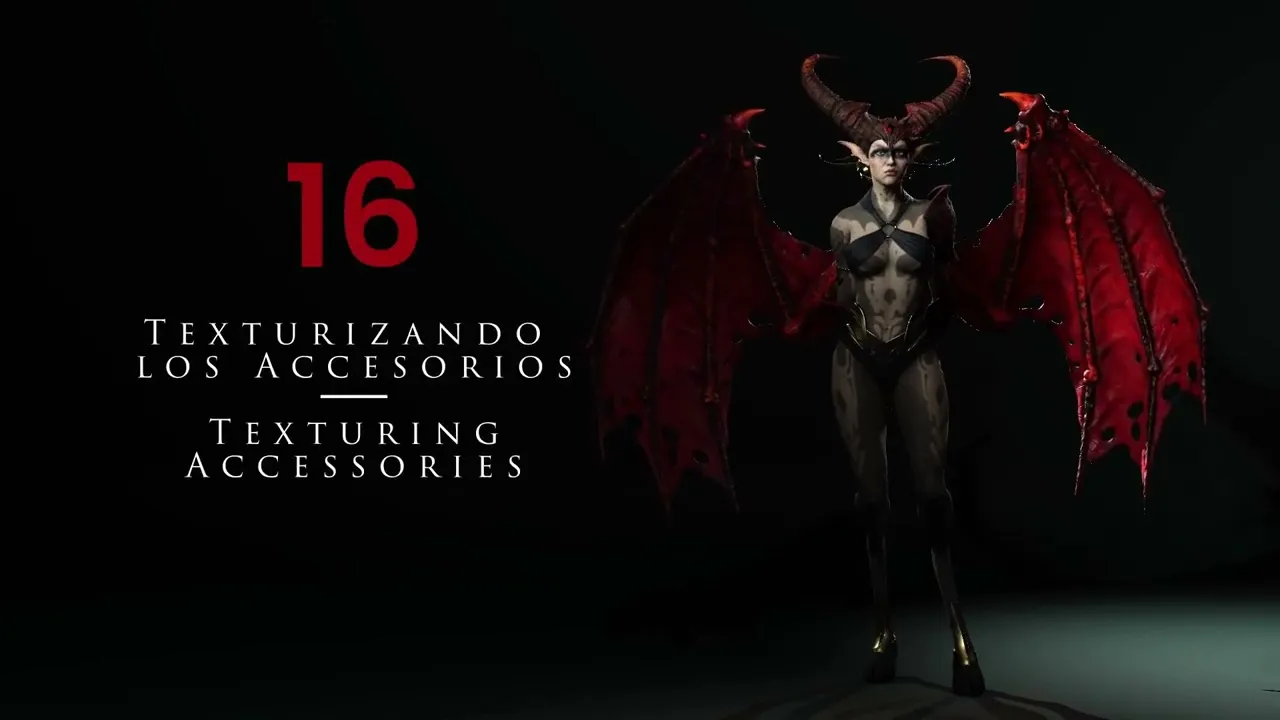
Texturing Skin, Tattoos & Accessories | Master Character Creator 5 & ZBrush: The Making of Veyra 16
 Reallusion
Aug 25, 2026 03:05
Reallusion
Aug 25, 2026 03:05
Create an account to hide videos, mark them watched, or save them to Don't Miss.
Create an account to hide videos, mark them watched, or save them to Don't Miss.
Create an account to hide videos, mark them watched, or save them to Don't Miss.
Chapters
TL;DR: This Character Creator 5 tutorial teaches indie developers and 3D artists how to master realistic character texturing. Learn to apply skin, makeup, eyes, and complex tattoos, solving the challenge of detailed accessory integration for stunning 3D characters.
⏱️ Video Chapters:
🔑 Key Takeaways & Features:
- Apply foundational skin and makeup templates directly within Character Creator 5, including precise adjustments for eyeliner and eyeshadow.
- Correct specific eye mesh anomalies within Character Creator 5's advanced eye behavior system for improved realism.
- Export character skin textures to Photoshop, applying custom tattoo designs via Multiply blend mode with 50% opacity for seamless integration.
- Utilize ZBrush's auto polygroups based on UVs and topological masking for efficient accessory painting and material application.
- Implement advanced ZBrush masking techniques, including Mask by Cavity and ambient occlusion, combined with fill color and top-down lighting effects for nuanced surface details.
❓ Frequently Asked Questions:
Q: How do you add custom tattoos to characters in Character Creator 5?
A: Export the character's skin textures, apply tattoos in an external image editor like Photoshop using a Multiply blend mode at 50% opacity, then reload the modified textures into Character Creator 5.
Q: What techniques are used for texturing accessories in ZBrush?
A: Accessories are prepared by creating auto polygroups based on UVs, then painted using topological masking and detailed with alphas, Mask by Cavity, and top-down lighting effects.
Q: How can eye elements be corrected within Character Creator 5?
A: Character Creator 5 features a direct correction tool for eye elements, which automatically fixes common issues like misaligned corneas after applying new materials.
💻 Software & Tools Used:
- Character Creator 5
- Photoshop
- ZBrush
📝 Comprehensive Video Summary:
This guide, presented by an expert in 3D character art, delivers a comprehensive workflow for 'Texturing Accessories' and full character detailing within Character Creator 5. The tutorial begins by demonstrating how to apply and refine base skin textures, makeup, and eye materials directly in Character Creator 5, including critical eye element correction. It then transitions into advanced external texture editing, showing how to export skin maps for tattoo integration using Photoshop's Multiply blend mode at 50% opacity, and subsequently reloading these customized textures. For accessories, the presenter outlines efficient ZBrush techniques, such as creating auto polygroups from UVs, applying colors with topological masks, and enhancing details using alphas. The guide concludes with advanced methods like cavity masking and simulating top-down lighting effects to achieve nuanced surface finishes, showcasing a robust pipeline for stunning 3D character creation. (For the complete technical breakdown and software demonstration, please enable Closed Captions).
❆LEARN MORE❆
Learn about Character Creator 5:
https://www.reallusion.com/character-creator/
✦FOLLOW US✦
Instagram: https://www.instagram.com/reallusionofficial/
Facebook: https://www.facebook.com/ReallusionSoftware/
TikTok: https://www.tiktok.com/@reallusionofficial
LinkedIn: https://www.linkedin.com/company/reallusion
Twitter: https://twitter.com/reallusion
Blog: https://magazine.reallusion.com/
Forum: https://discussions.reallusion.com/
❆ONLINE HELP❆
Character Creator 5: https://courses.reallusion.com/home/character-creator
#CharacterCreator5 #ZBrush #Photoshop
Film & Animation
#Character Creator 5
#CC5
#3D character texturing
#texturing accessories
#how to add tattoos in CC5
#character creator 5 textures
#3D character art
#ZBrush texturing
#Photoshop texturing
#game character texturing
#real-time 3D
#character artist workflow
#digital sculpting
#3D workflow