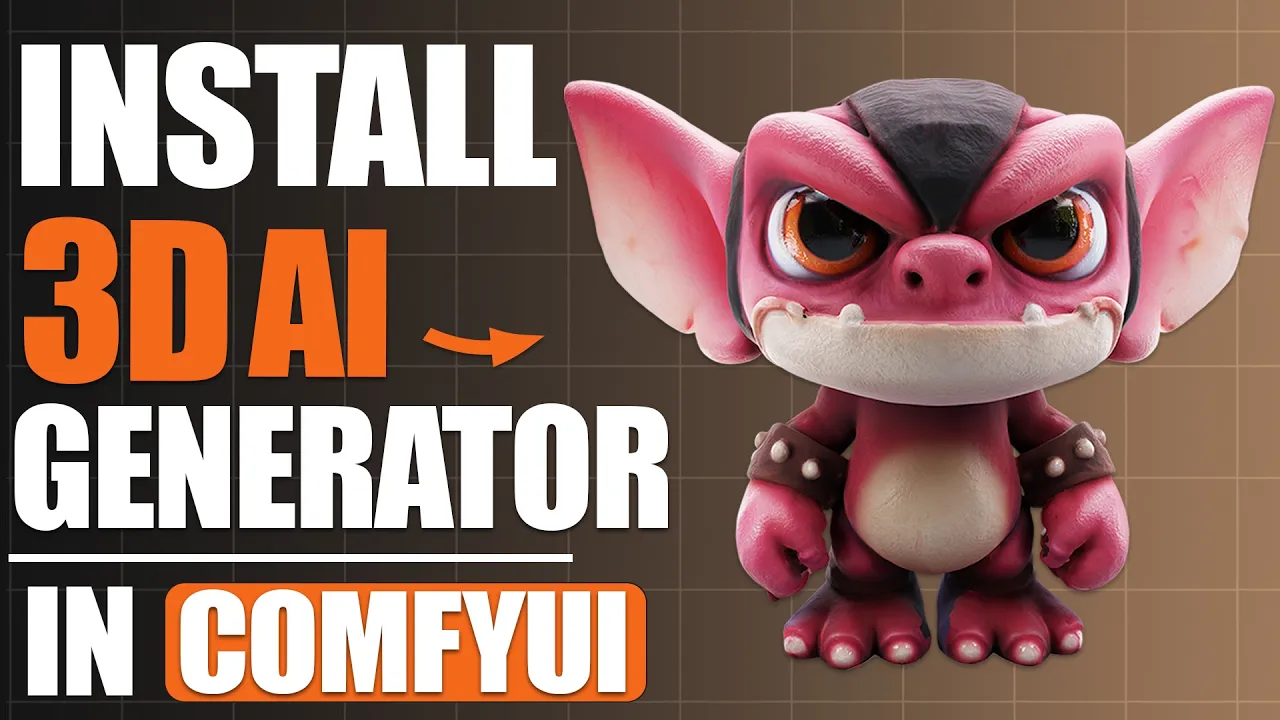
The EASIEST Way to Install Hunyuan3D for Free in ComfyUI!
 PixelArtistry
Sep 15, 2025 14:44
PixelArtistry
Sep 15, 2025 14:44
Create an account to hide videos, mark them watched, or save them to Don't Miss.
Create an account to hide videos, mark them watched, or save them to Don't Miss.
Create an account to hide videos, mark them watched, or save them to Don't Miss.
Chapters
Join our FREE Newsletter FutureFrames:
https://pixel-artistry.com/newsletter
Join our FREE Discord PixelArtistry:
https://pixel-artistry.com/discord
Hey guys, in this video I’ll show you how to install Hunyuan3D in ComfyUI the easy way. This step by step tutorial covers both Hunyuan3D 2.0 and Hunyuan3D 2.1, making sure you can set up your AI 3D workflow without endless troubleshooting or confusing errors. By the end you’ll have a fully working installation that lets you generate stunning 3D models directly inside ComfyUI.
We’ll go through everything you need, including installing CUDA for GPU acceleration, setting up Visual Studio Build Tools, downloading the correct ComfyUI portable folder with Python support, and running the installation scripts for Hunyuan3D. You’ll also learn where to place the diffusion models, VAE files, and how to launch workflows so your AI 3D generation runs smoothly.
This video is perfect for anyone looking for a ComfyUI tutorial, an AI 3D install guide, or just the fastest way to set up Hunyuan3D for ComfyUI without wasting hours.
If this tutorial helps you, don’t forget to like the video, subscribe to the channel, and join the PixelArtistry Discord and Newsletter Futureframes where we share even more tips on ComfyUI workflows, 3D AI tools, and the latest in generative AI for artists.
LINK to the necessary drive folder with all files included: https://pixel-artistry.com/Hunyuan3DInstallationScript
If you need extra help or want a detailed reference, here’s the complete written installation PDF guide:
👉 https://pixel-artistry.com/Hunyuan3DInstallationPDF
✨ Useful Links & Tools:
🔹 3D & AI Tools
TripoAI: https://studio.tripo3d.ai/home?via=pixelartistry
3dAiStudio: https://3daistudio.lemonsqueezy.com?aff=lb8ND
MeshyAI: https://www.meshy.ai/?via=pixelArtistry
🔹 Software & Assets
- Adobe Creative Cloud: https://www.adobe.com/creativecloud.html
- Motionarray (stock footage, templates): https://motionarray.com/
- Blender Market (add-ons & assets): https://superhivemarket.com/
⚠️ Transparency Notice: Some of the links above are affiliate links.
If you purchase through these links, I may earn a small commission – at **no extra cost to you**.
This helps support my channel – thank you so much 🙏
Film & Animation
#image to 3d model
#ai tools
#image to 3d model ai
#image to 3d model blender
#image to 3d ai
#3d ai
#2d image to 3d model blender
#convert image to 3d model
#ai
#hunyuan 3d
#3d to ai
#3d ai studio
#3d ai free
#ai character
#ai 3d printing
#ai 3d animation
#accurig
#mixamo
#blender
#blender ai
#hunyuan
#hunyuan 3d blender
#hunyuan 3d 2.5
#hunyuan3d comfyui
#hunyuan 3d update
#generate 3d
#hunyuan new
#hunyuan ai
#qwen image edit
#qwen image
#quwen image edit 3d