How to Use SAM 3D Models with GeoTracker for Blender
 KeenTools
Feb 5, 2026 12:33
KeenTools
Feb 5, 2026 12:33
Create an account to hide videos, mark them watched, or save them to Don't Miss.
Create an account to hide videos, mark them watched, or save them to Don't Miss.
Create an account to hide videos, mark them watched, or save them to Don't Miss.
Chapters
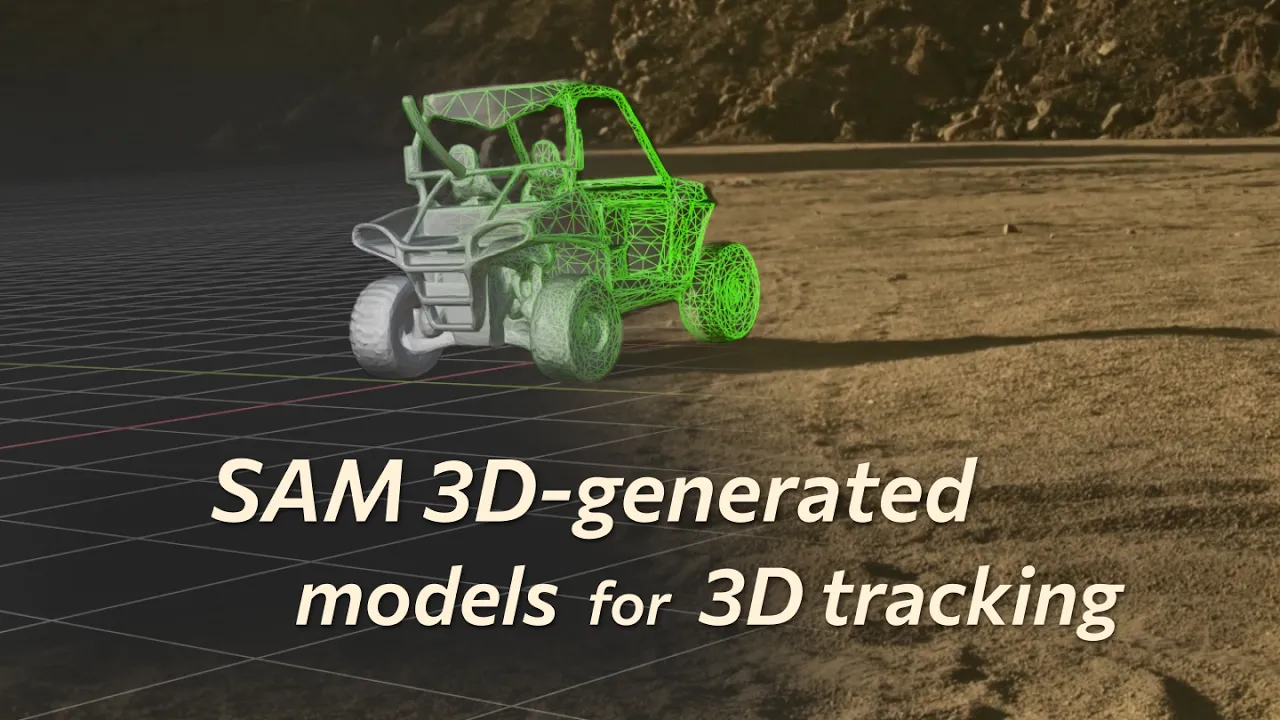
Quick 3D model generation for object tracking from a single snapshot using Meta’s SAM 3D AI model.
In this tutorial, we walk through the full workflow: from creating geometry in the SAM 3D playground to using it for precise object tracking with GeoTracker for Blender. Perfect when no pre-made 3D model is available.
Download GeoTracker for Blender: https://link.keentools.io/gtb-s3d-tut
SAM 3D (Segment Anything): https://ai.meta.com/research/sam3d/
Download project files: https://link.keentools.io/example-gtb-sam3d
Timecodes:
Subscribe to our newsletter to stay in tune with the latest updates: https://link.keentools.io/newsletter
Our website: https://keentools.io
Follow us:
https://linkedin.com/company/keentools
https://twitter.com/keen_tools
https://instagram.com/keentools
https://link.keentools.io/discord
https://tiktok.com/@keentools
https://facebook.com/keentools
Film & Animation
#KeenTools
#GeoTracker
#FaceTracker
#PinTool
#ReadRiggedGeo
#Nuke
#Foundry
#Object tracking
#Tracking
#Camera
#Tracker. matchmoving
#plugin
#Blackmagic
#Fusion
#Adobe
#After Effects
#VFX
#Visual Effects
#3D
#cinema
#movie
#video production
#compositing
#SAM 3D
#Segment Anything
#AI
#3D tracking
#Blender
#Matchmove