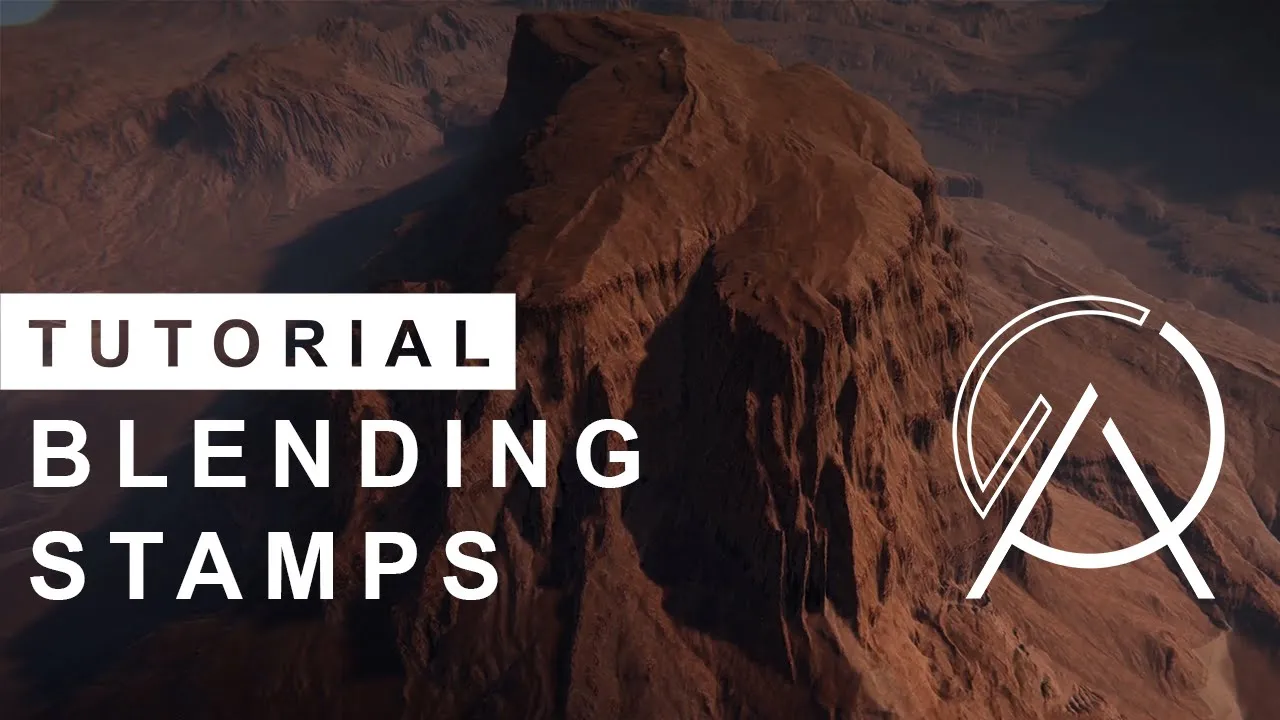
[Unity Tutorial] Atlas Unity Terrain Editor - How to Blend Stamps
 Atlas Terrain
Oct 3, 2022 12:30
Atlas Terrain
Oct 3, 2022 12:30
Create an account to hide videos, mark them watched, or save them to Don't Miss.
Create an account to hide videos, mark them watched, or save them to Don't Miss.
Create an account to hide videos, mark them watched, or save them to Don't Miss.
Chapters
Let's look at how blending in Atlas terrain editor will help you create beautiful Unity terrain.
*Get Atlas @ Asset Store:* https://assetstore.unity.com/packages/tools/terrain/atlas-terrain-editor-207568?aid=1100loEXG&pubref=Youtube
Official website: https://atlasterrain.com/?from=youtube
Discord: https://discord.gg/ycFha5sffP
Twitter: https://twitter.com/AtlasTerrain
Facebook: https://www.facebook.com/ATLAS-terrain-105303281958886
Instagram: https://www.instagram.com/atlas.terrain/
Reddit: https://www.reddit.com/r/AtlasTerrain
Atlas is all about blending stamps and building worlds with them.
This tutorial does not need to be followed step by stepI
Instead, we will go over each blend option individually and show what it does.
Let's jump right in.
We opened a pre-made scene containing two hill stamps.
One hill is rendered on top of the other.
We'll select the secondary stamp and showcase the different blend modes available.
You can find the blend modes in the height section of the stamps in the inspector.
The first and default blend mode, called Blend, will simply override or set the height of our terrain.
Let's move the stamp around so that we can see what it does.
There's also the blend Mode called Min which allows the smallest height value to win.
This mode is mainly used for carving things like craters and canyons.
Let's move the stamp around to get a better understanding of what it does.
Next we have the blend mode called Max.
This is similar to the Min mode and allows the highest value to win.
This can be used to punch mountains through the terrain.
Blend, Min and Max is what we'll be using most of the time but there are two extra modes that can be used.
The Add mode, as the name suggests, adds height to the terrain.
This can be used for layering smaller details on top of our terrain.
When we move the stamp up and down the result remains the same.
We can however still scale the stamp to get more height difference.
The last blend mode is the Sub mode which is the reverse of the Add mode and subtracts height from our terrain.
Just like we saw with the Add mode, the height of our stamp does not change the result but scaling the stamp does.
That's it for blend modes. Use them wisely and you can get some really nice results and optimize your workflow at the same time.
In the next section, we'll take a look at manually brushing our stamps to make them blend even better.
Gaming
#unity hdrp
#devlog
#unity terrain
#terrain editior
#terrain unity
#unity terrain tools
#game dev
#terrain tools unity
#unity new terrain system
#terrain editor
#unity terrain tool
#terrain unity3d
#terrain in unity
#unity terrain toolbox
#unity landscape
#unity new terrain
#unity terrains
#unity urp terrain
#unity 3d terrain
#unity terrain editor
#terrain package unity
#terrains in unity
#unity making terrains
#terrain tool
#making terrains with unity
#beautiful terrain